
News and Announcements

System news and announcements are displayed at the top of the MyNETLAB page. Using this feature provides a way to communicate with all users of your NETLAB+ system.
Note
System-wide settings will be displayed on the MyNETLAB page of all users, above any community Welcome Message or News and Announcements.
Note
Login Recovery Information is the exception. It is not shown on the MyNETLAB page;
it is displayed to people who are not signed in, on the login page.
See Login Recovery Information below.
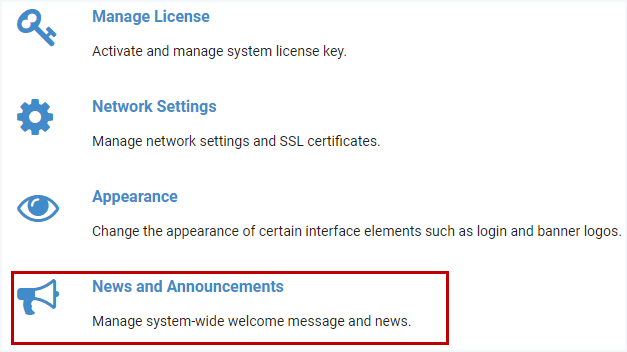
To manage the system-wide welcome message and news, select > Settings > News and Announcements.
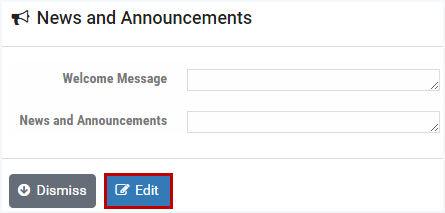
Select the Edit button.
Enter information into the Welcome Message and/or News and Announcements fields. See the field descriptions below. Click Submit.
Tip
GitHub Flavored Markdown is supported, as shown in the example below. Not familiar with GitHub Flavored Markdown? A quick Internet search will lead you to information on syntax and examples.
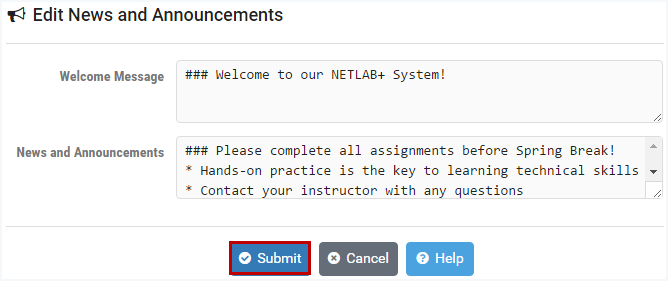
Field Descriptions - News and Announcements
- Welcome:
Define a welcome message for the system. The message is displayed on the MyNETLAB page in its entirety, above any community welcome message or community news. GitHub Flavored Markdown is supported. Links will open in separate tabs or windows.
- News and Announcements:
Define news and announcements for the system. This is displayed on the MyNETLAB page above any community welcome messages or community news. Space for news and announcements is constrained to a scrollable region, so it is suitable for longer text. GitHub Flavored Markdown is supported. Links will open in separate tabs or windows.
- Login Recovery Information:
Define the message displayed when someone selects the Forgot login information link on the login page, or the Forgot Password button after a failed login attempt. Unlike the two settings above, this message is shown to people who are not signed in, and it does not appear on the MyNETLAB page. If the field is left blank, a built-in default message is displayed instead. GitHub Flavored Markdown is supported. Links will open in separate tabs or windows.
Tip
Welcome messages can also be set for specific communities. See the Manage Communities section.
Tip
News and Announcements can also be set for specific communities. See the Manage Communities section.
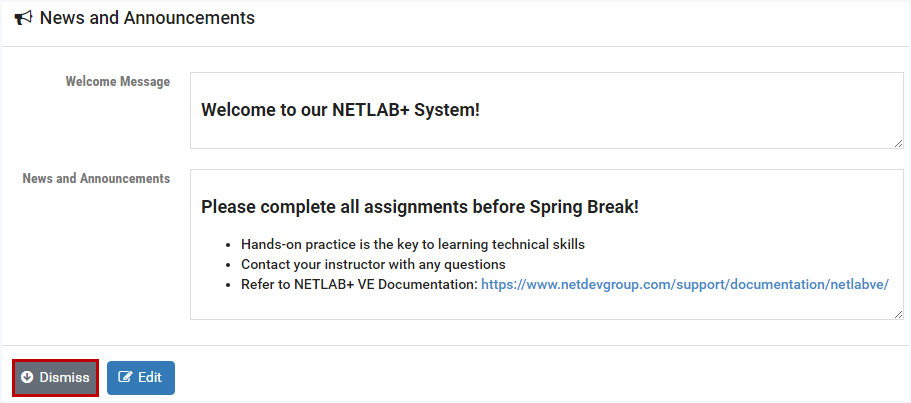
The News and Announcements page displays the information that has been entered.
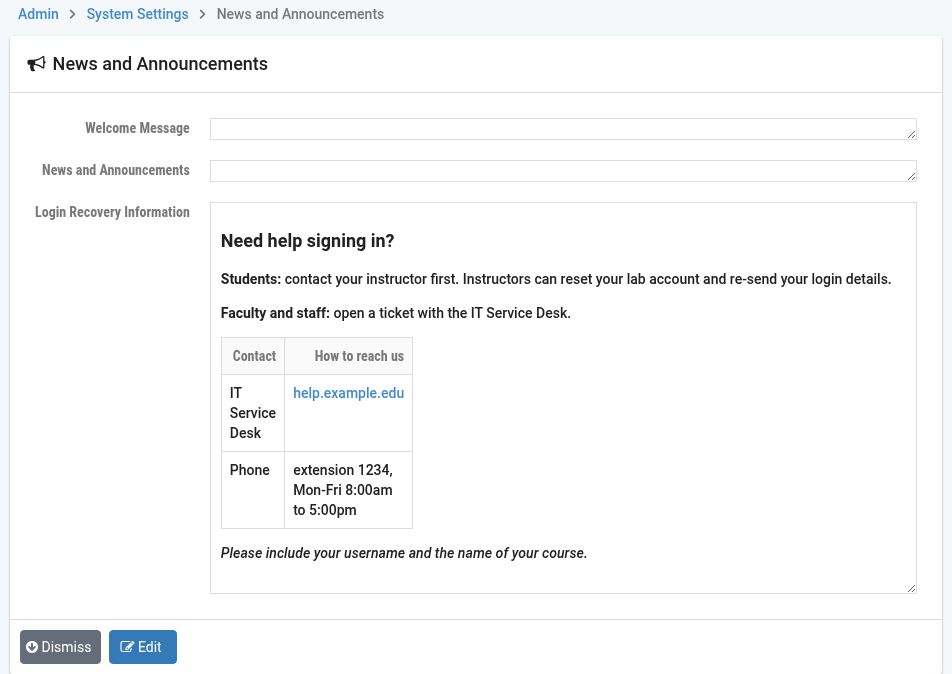
Any markdown included will be rendered as it will appear on the MyNETLAB page for all users.
Click Dismiss to return to the System Settings page.
Select at the top-right to return to the administrator Home page.
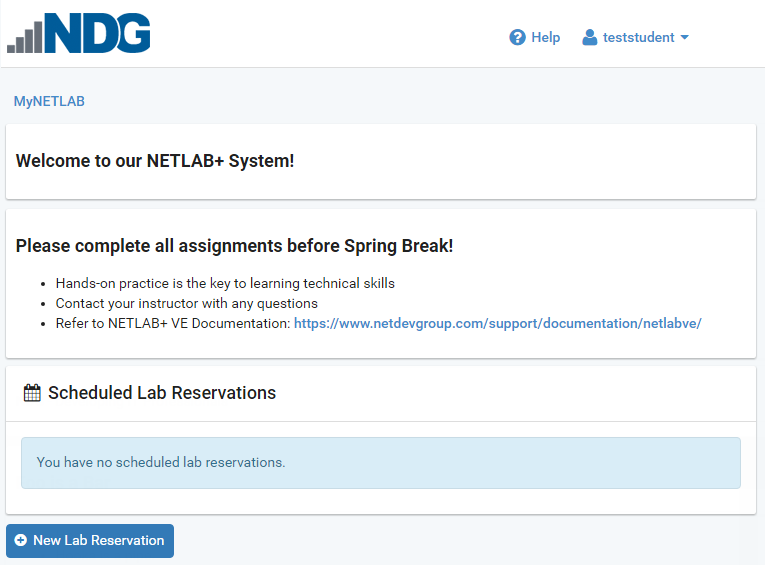
Here, we show how the Welcome Message and the News and Announcements will be displayed when a student logs into the system.
Login Recovery Information
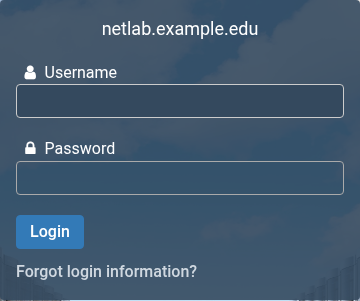
As of version 25.3.0, the login page carries a Forgot login information? link below the
Login button. Because it sits on the login page itself, someone who cannot sign in
can still reach it.
Use Login Recovery Information to tell those users what to do at your organization: who to
contact, which help desk to open a ticket with, and what details to include. If you leave the field blank,
NETLAB+ displays a built-in default message instead.
Note
The same message is displayed when a user selects the Forgot Password button on the dialog
that appears after a failed login attempt.
Select > Settings > News and Announcements, then select the
Edit button.
Enter your message in the Login Recovery Information field and click Submit.
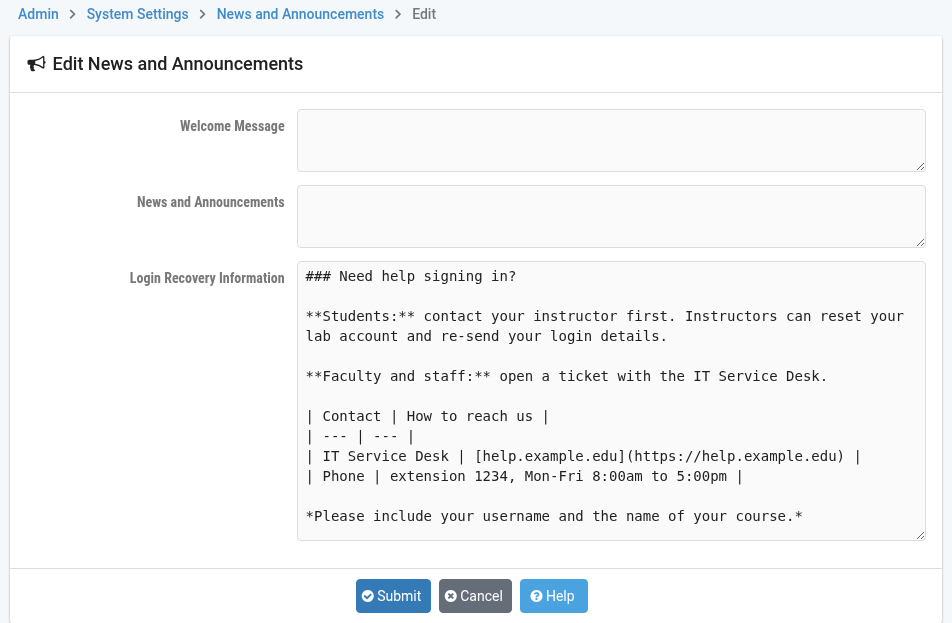
GitHub Flavored Markdown is supported, including headings, bold and italic text, lists, tables, and links. The example below uses all of them.
The News and Announcements page shows the message rendered exactly as users will
see it. The preview area scrolls, and can be enlarged by dragging the handle in its lower-right corner.
To confirm the result, sign out and select Forgot login information? on the login
page. Your message is displayed in place of the built-in default.
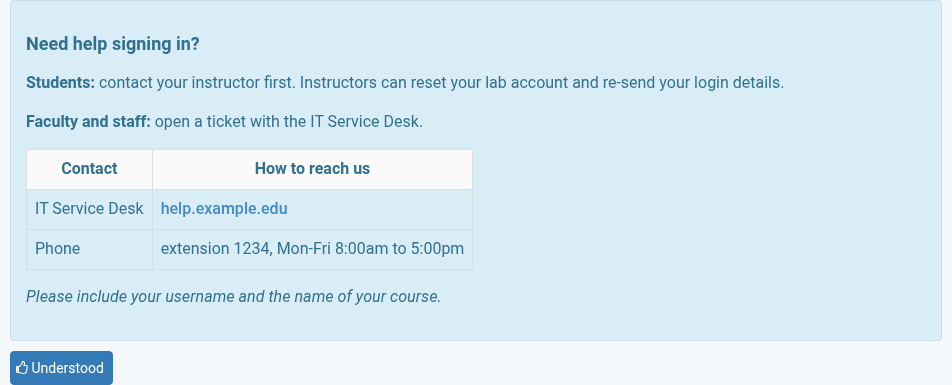
Select Understood to return to the login page.
Tip
Links in the message open in a separate tab or window, so a user who follows one does not lose the login page.
Warning
This message can be read by anyone who can reach your login page, including people who are not signed in and have no account on the system. Do not include anything you would not publish, such as direct staff email addresses, private phone numbers, or details that identify individual accounts.